These guides apply to manual configuration OctoBot instances. Start one from your OctoBot node interface by clicking New OctoBot.
Node mode was recently added to OctoBot in version 3. See the getting started guide for more information.
Node mode was recently added to OctoBot in version 3. See the getting started guide for more information.
HollaEx account setup
HollaEx is an open-source white label exchange: OctoBot is compatible with every HollaEx powered exchange.
An API Key can be considered as a username that is generating to allow access to data.
An API Secret, also referred to as API Private Key is simply a password used in combination with an API Key.
Create an account
- Fill the registration form on the HollaEx powered exchange you wish to Trading on (or on hollaex.com to use HollaEx’s demo exchange).
Generate API key
Generate Your Keys
- Sign into your Exchange account
- Click on your profile in the top right corner.
- Click on
Security - Click on
API Keys - Click on
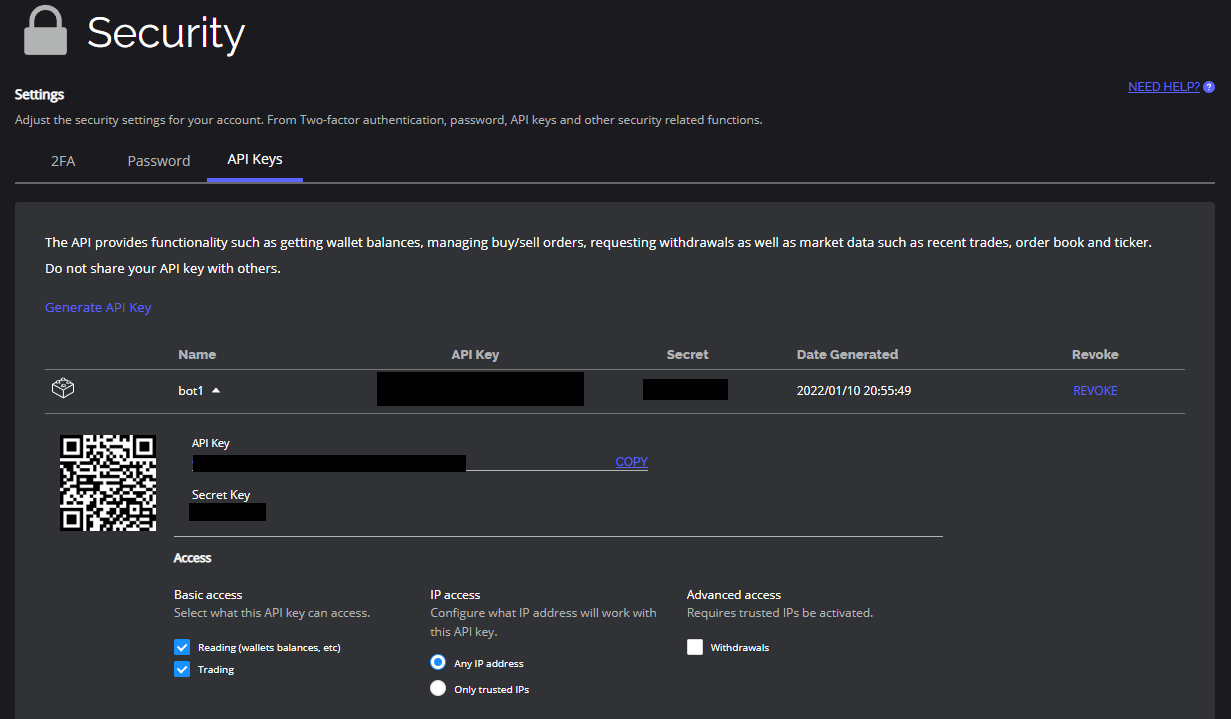
Generate API Key
Configure the API Settings
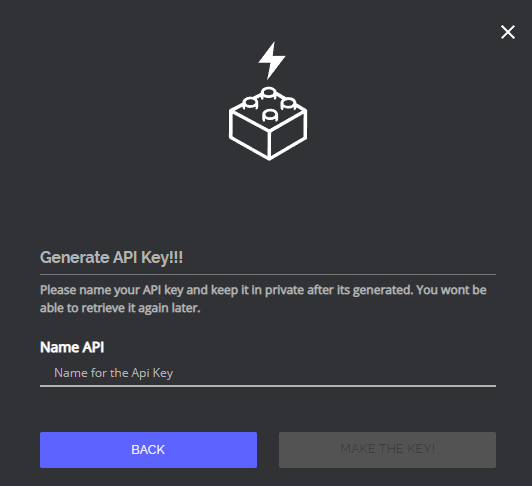
- Give a name to your API Key
- OctoBot needs the
Readfunction to be able to pull in balances from HollaEx andTradeto create new orders. - Click on Submit.
Add the API key to OctoBot
Add HollaEx exchange
- Start your OctoBot
- Click on
Accountstab - Click on
Exchangeson the left menu - Click on the selector and search
hollaex - Click on
ADD
Enter the HollaEx exchange address
Optional: If you are connecting to an exchange that is based on HollaEx but is not https://www.hollaex.com/, you can enter its url on the HollaEx configuration.

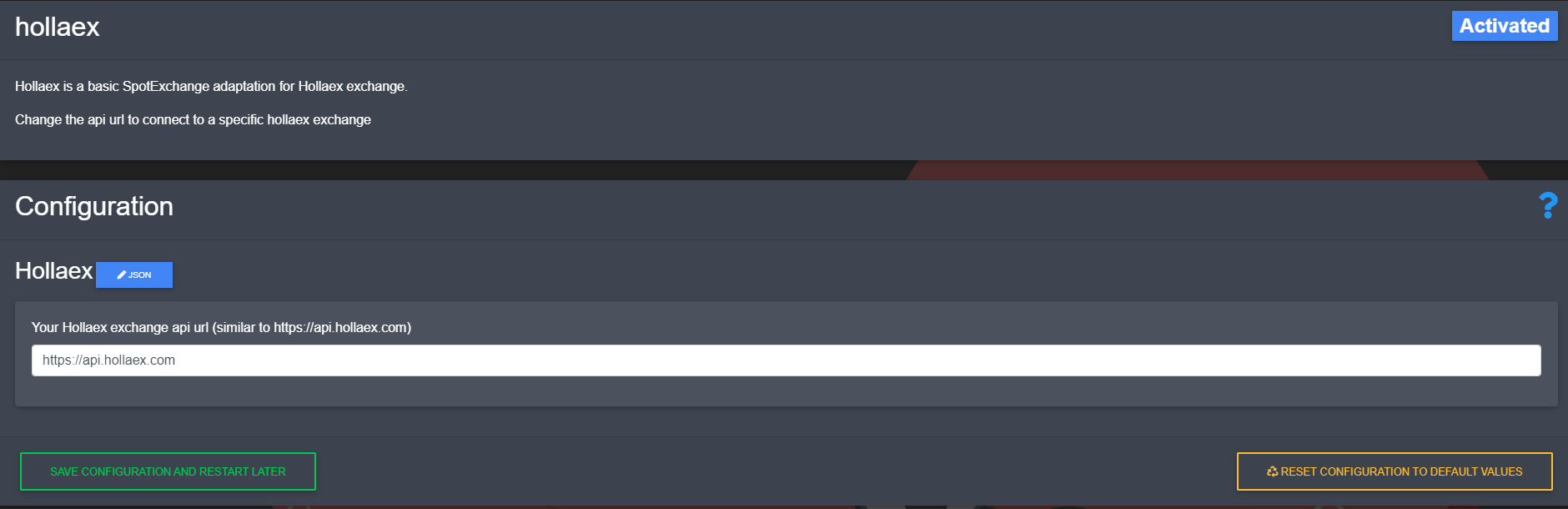
Note: after changing the url, you will need to restart OctoBot for it to take your new exchange url into account.
Add HollaEx API keys
- Copy and paste
API Keyfrom HollaEx to your OctoBotAPI Keyfield - Copy and paste
Secret Keyfrom HollaEx to your OctoBotAPI Secretfield
- Click on
Save And restart