Get started with OctoBot beta
OctoBot beta is work in progress. You may hit bugs or incomplete features.
OctoBot beta is the open-source OctoBot with a new system for portfolio automation from desktop and mobile. You run it on your computer or server in node mode (the new default OctoBot mode), which acts as the backend for the new OctoBot interface.
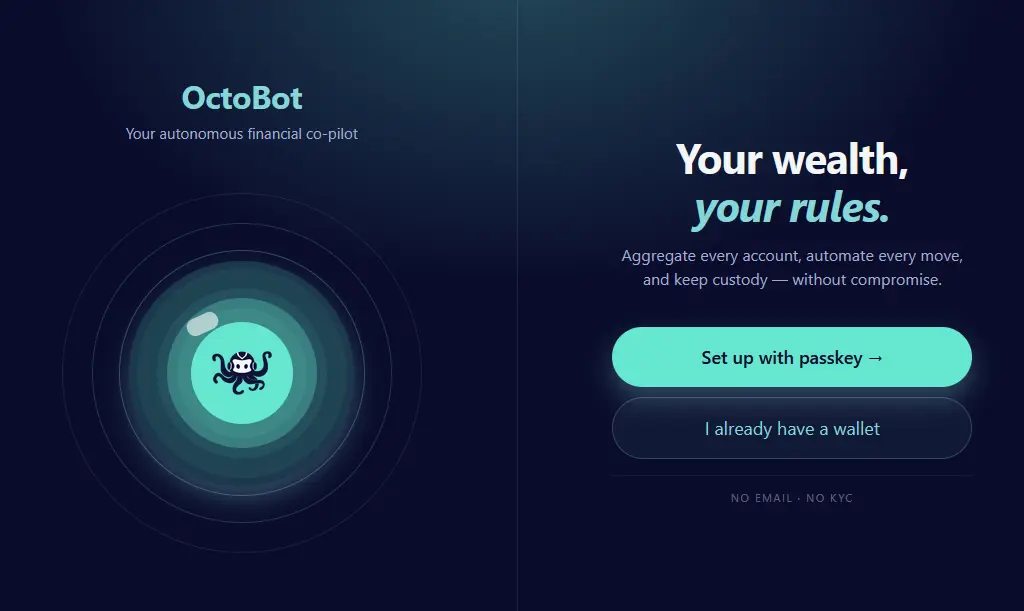
For the full announcement, read the OctoBot beta announcement.
Download and start your node
- Get the latest beta from the GitHub releases page
- Install on your computer or server using the install guide (executable, Docker, or Python)
Starting the latest release runs OctoBot in node mode. Complete the initial node setup on first launch. From one node, you can run multiple automations (DCA, Grid, crypto basket) and manual OctoBot instances.
Connect the new OctoBot interface to your node
Mobile and web browser access
You can connect to your node in three ways:
- Web browser: Open the new OctoBot interface on desktop or mobile (recommended).
- Android app (optional): Install the beta app from the Google Play Store. Enable the app’s beta program on the Play Store to use it.
- iOS app (optional): Join the beta on TestFlight. Install the TestFlight app from the App Store first, then open the link on your iPhone or iPad to install the OctoBot beta.
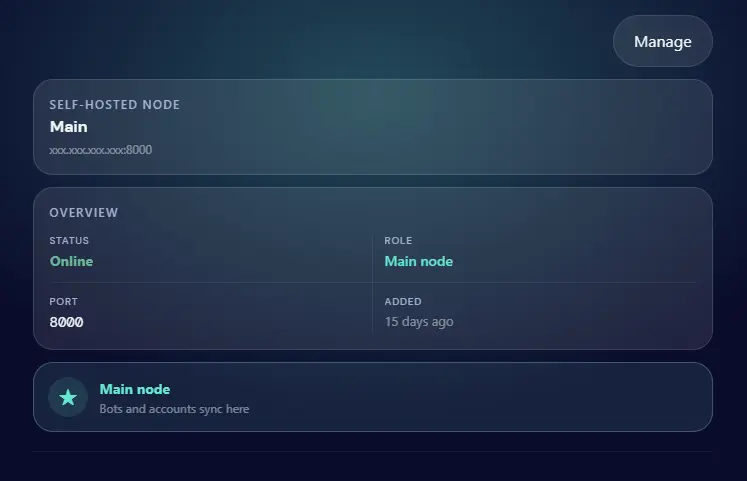
Follow the node’s initial configuration guide
On first launch, your node opens a built-in initial configuration guide. Follow it to connect the new OctoBot interface to your node. It covers wallet setup and the connection steps.
Use the new OctoBot interface to manage your OctoBots, and link your exchange accounts. Your node will be your secure server running your strategies.
Manual setup (if necessary)
If you skipped the initial configuration guide or need to connect again later, set this up manually:
Step 1: Add your wallet to the new OctoBot interface
- On the node, open Settings → Wallet management
- Export your wallet private key
- In the new OctoBot interface or Android or iOS beta app, paste the private key to load your wallet
Step 2: Connect to your node
Follow the OctoBot interface connection guide available from the settings of your node.
Starting OctoBots from the new OctoBot interface
Once connected, the home dashboard shows your accounts and running automations.
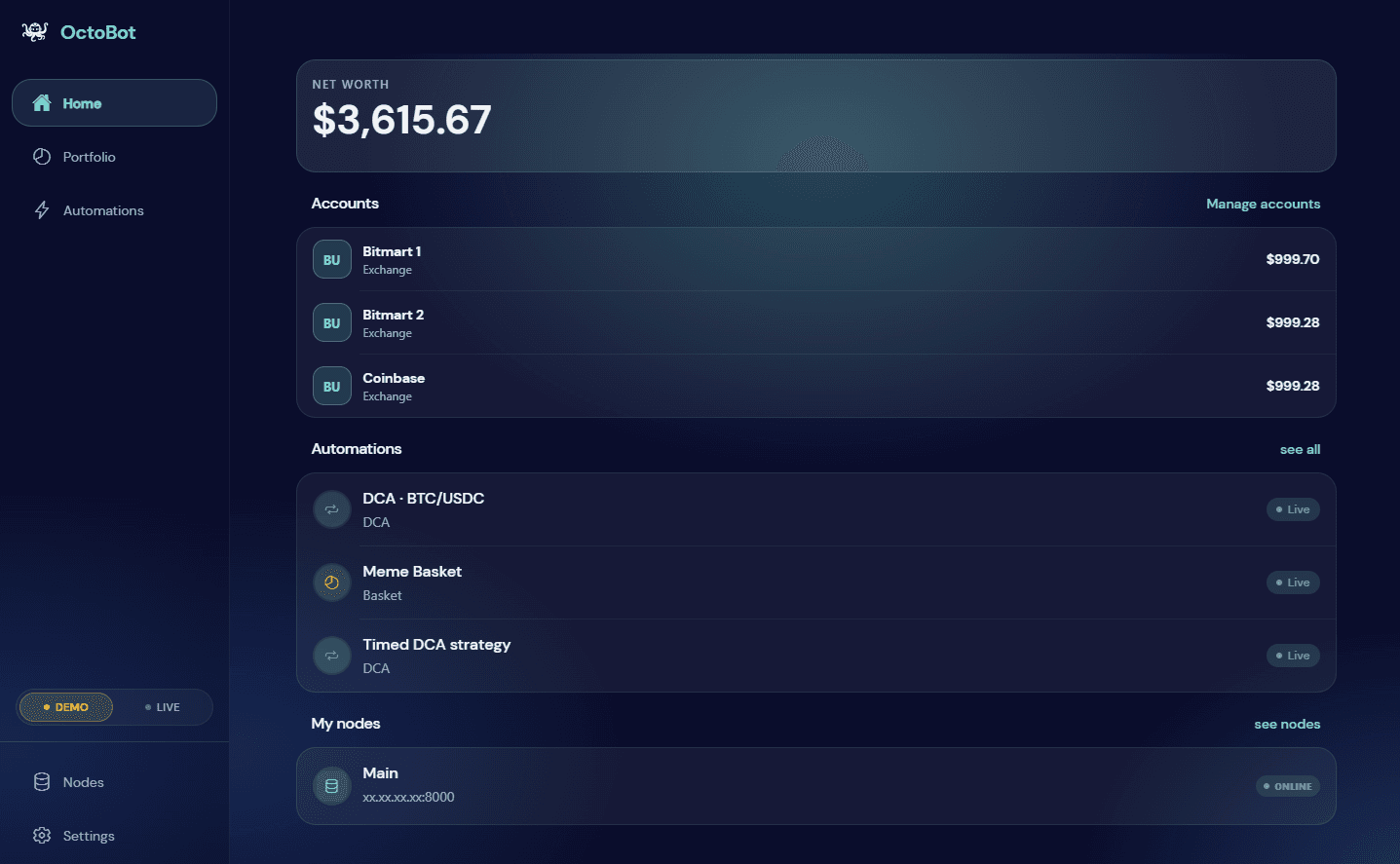
Automations are the new way to run OctoBots. An automation is a strategy running on OctoBot. It can do anything: DCA, baskets, grids, TradingView automation, and more. Automations support demo and live trading. You can start as many as you want from the new OctoBot interface.
Soon, we will introduce a Graphic strategy editor to configure any type of automation and custom algorithm in the new OctoBot interface, making configuration effectively unlimited.
Start a manual OctoBot from your node
For backtesting, Telegram, TradingView, and other advanced workflows, start a manual OctoBot instance from the new OctoBot interface.
- Open your OctoBot node interface
- Click New OctoBot
- Follow the prompts to start a manual OctoBot instance
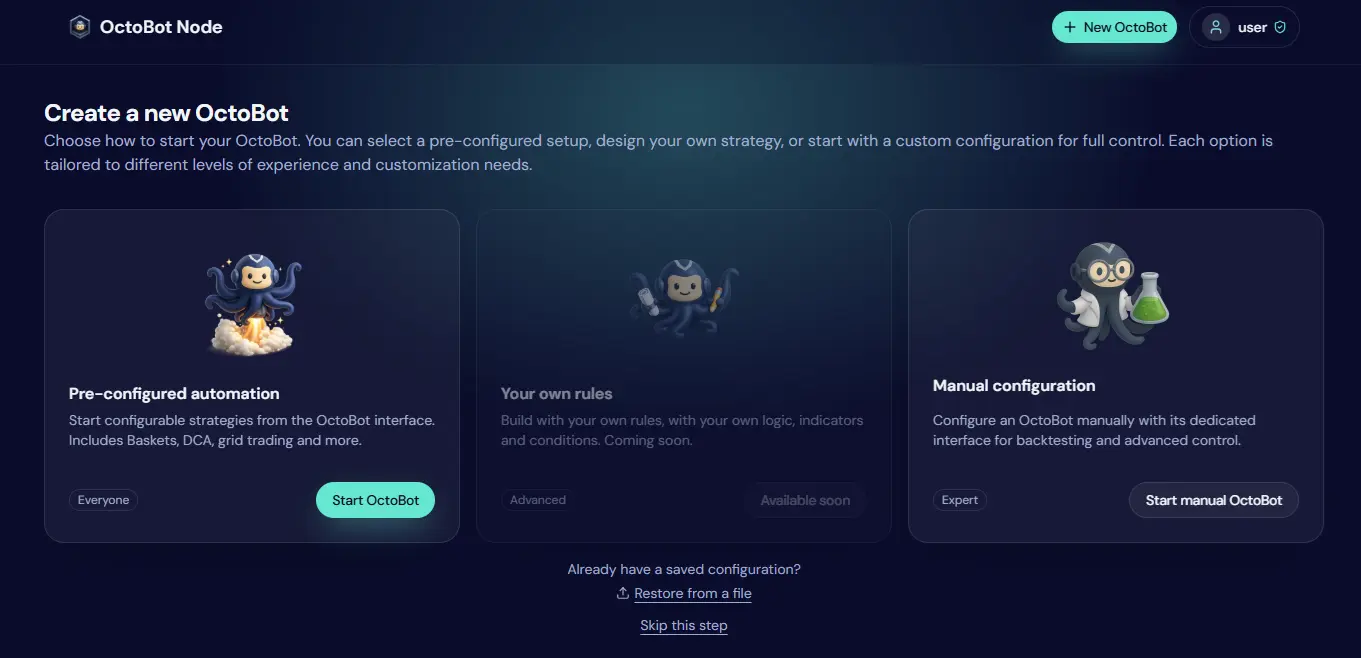
See the open-source guides for configuration, trading modes, and interfaces.
Connect from anywhere with Tailscale
If your node runs on a computer, server, or Raspberry Pi and you want to manage it from the new OctoBot interface or Android or iOS beta app anywhere, use a Tailscale private network instead of exposing your node on the public internet.
Tailscale is a leading private networking provider. It is free for personal use and built on open-source software.
- Download Tailscale and create a Tailscale account
- Install Tailscale on the computer or server running your OctoBot node
- Install Tailscale on your mobile device
- Enable Tailscale on both your devices: your Tailscale app should display your server and your mobile as Connected
- Use your node’s Tailscale IP address or MagicDNS when connecting the new OctoBot interface to your node
Pro tip: Tailscale lets you run your node on any machine and control it from the new OctoBot interface or Android or iOS beta app over a secure private network.
Connection troubleshooting
If you cannot connect the new OctoBot interface to your node, check these known issues:
- Your node server must accept incoming connections. Your network may need to be tagged as a trusted network, or your firewall might block connections. When using Tailscale, your Tailscale network may also need to be tagged as trusted to accept connections.
- Your antivirus could prevent incoming connections as well. If so, try temporarily disabling it when connecting to your node. If that works, add the OctoBot executable as an exception in your antivirus.
Share feedback
OctoBot beta is actively evolving. Your feedback helps us improve what ships in the official release.