Connect your node to your OctoBot interface
An OctoBot node is the program that runs on your computer, Raspberry Pi, or server. It connects to exchanges and executes your investment strategies while keeping everything secure. It’s a program you start on a computer and leave running.
Most of the time, you will use the web browser interface at new.mobile.octobot.cloud or the iOS/Android mobile app, which are configured to securely work in pair with your node.
This guide explains how to link your node to the web and mobile app interface.
If you have not installed the node or imported your wallet yet, start with the getting started guide.
OctoBot 3 and the new OctoBot interface are still in beta. You may hit bugs or rough edges while we improve the product. If you find an issue, email contact@octobot.cloud.
The two interfaces you will use
OctoBot Node: your secure investment system
You will only use this interface during the first setup of your node or to connect a new web or mobile app.
On the computer running your OctoBot Node, open http://localhost:8000 or http://127.0.0.1:8000 (or the HTTPS equivalent for remote connection). The OctoBot Node uses advanced cryptography to securely store and share information with the web and mobile apps. As a result, during the initial setup, each Node configures its own keys that can then be used to bind your node to the web and mobile app.
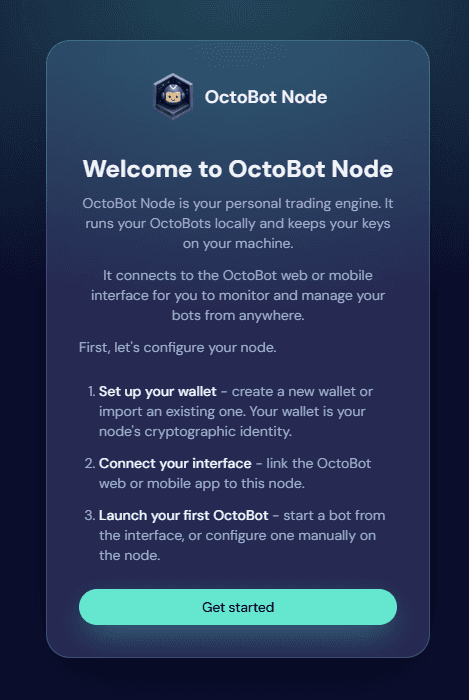
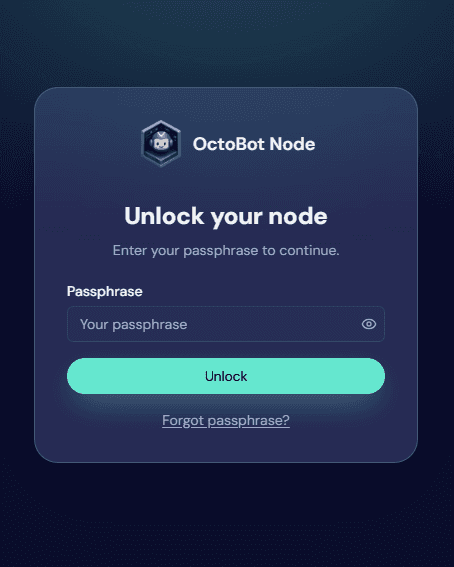
Once the Node initial setup is complete and your web and/or mobile app are linked, you will likely not need to use this interface again. You can think of your node interface as the admin access to your trading system.
OctoBot web and mobile app: what you use every day
Use new.mobile.octobot.cloud or the mobile apps to create automations, start strategies, and follow your exchange portfolios and OctoBots’ performances.
This interface is designed to be as user-friendly and convenient as possible. It’s a simple gateway to your advanced and secure trading system.
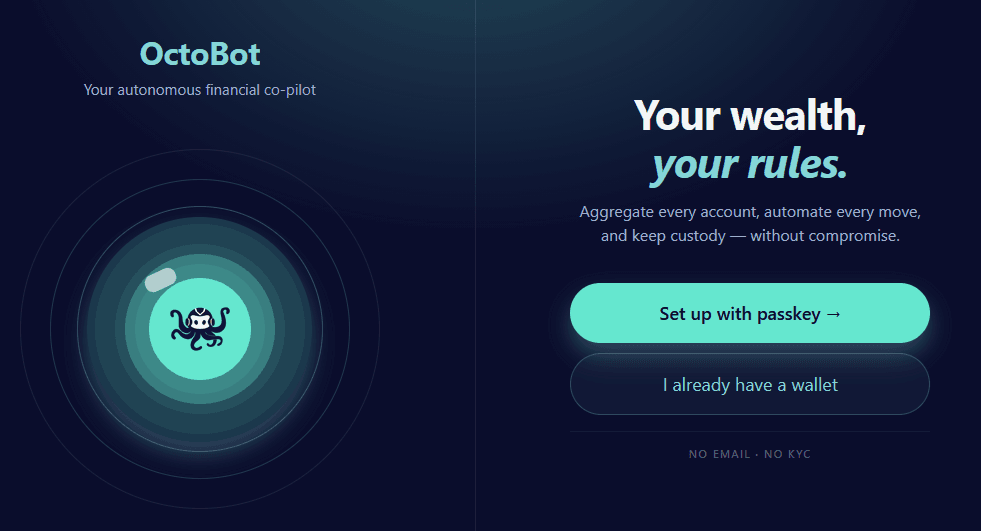
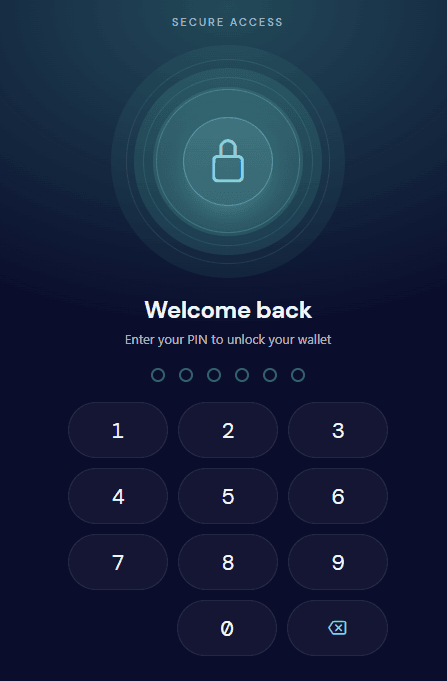
To bind to your node, copy the hostname and port from the OctoBot Node’s connect screen (displayed during the initial setup and available in the node Settings). To reach the Node from outside your home network, use a Private network (like Tailscale) or a Remote server.
How to connect your Node to the web and mobile apps
Pick the option that matches how you want your OctoBot to run and how you want to use it.
Limit: Works on your home's local network only.
Limit: Requires to use Tailscale (free) on the Node's computer and on each device you want to use.
Limit: More technical: firewalls, certificates, server access and running costs.
If you are not sure which option to choose, we recommend starting with the Local network: it requires no extra setup and is best to get started. You can always switch to a different option later.
Local network
When to use
Choose this when OctoBot runs on a home computer and you want to use the web or mobile app from the same computer or from phones and other computers on your home Wi-Fi.
This is the simplest way to get started. It does not work when you are away from home (mobile data, travel, or another Wi-Fi network). For that, see Private network or Remote server.
Switching later is easy. If you started on Local network and later want access from anywhere, you do not need to reinstall OctoBot. Install Tailscale on the computer that runs the node and on each phone or computer you use, sign in to the same Tailscale account on all of them, then use the VPN tab on the node connect screen instead of Local network when you add the node in the web or app. See Private network. Your node and wallet stay the same; only the hostname and port you copy change.
How to configure the node
On the computer that runs the node, open http://localhost:8000 or http://127.0.0.1:8000.
- Finish the initial node setup if the node asks you to.
- On Connect your Node to your OctoBot interface (or Settings → Connect), open the Local network tab. This shows the hostname or IP and port that other devices on your home Wi-Fi must use.
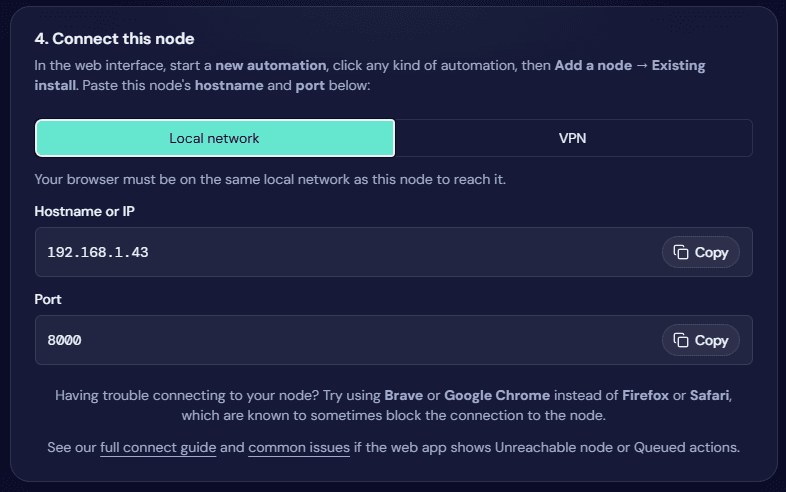
Note: use the hostname or IP and port shown on the Local network tab, including from the computer that runs the node.
How to connect using the web interface
On the computer that runs the node
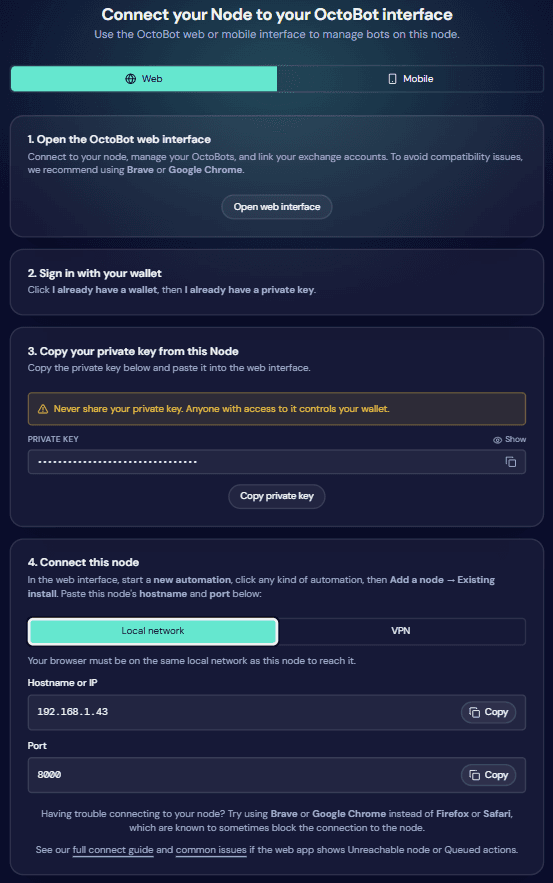
Open Connect your Node to your OctoBot interface → Web tab on the node, then:
- Open the OctoBot web interface: click Open web interface.
- Sign in with your wallet: I already have a wallet, then I already have a private key.
- Copy your private key from this Node: paste the key into the web interface.
- Connect this node: new automation → any type → Add a node → Existing install. Use the hostname or IP displayed on the Local network tab and the port shown on the node (usually 8000).
From another computer
On a laptop or tablet on the same home Wi-Fi, open new.mobile.octobot.cloud and follow the same four steps. When you add the node, use the hostname or IP and port from the node Local network tab (not localhost or 127.0.0.1). You should see checks like below before Save.
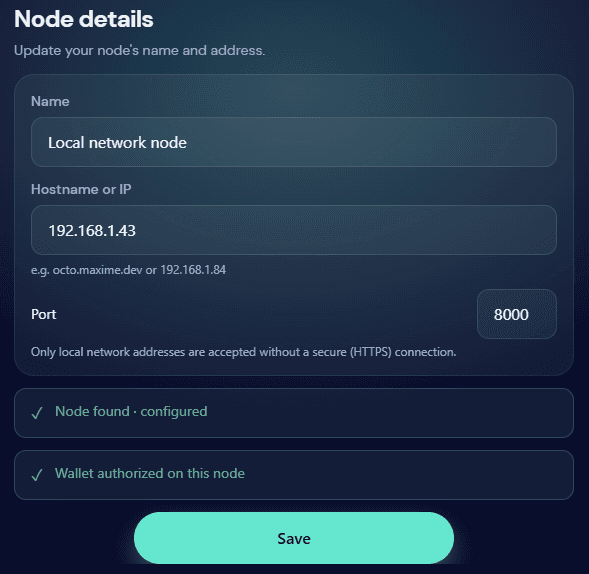
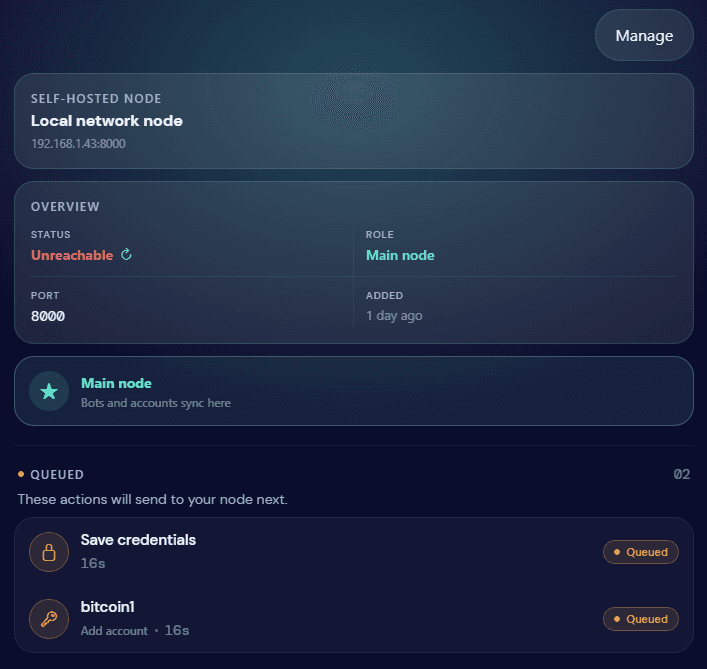
If the web app cannot reach the node, status stays Unreachable and actions can queue instead — see What a failed connection looks like below.
We recommend Brave or Google Chrome if the browser blocks the connection to your node.
How to connect using the app
On the node, open Connect your Node to your OctoBot interface → Mobile tab, then:
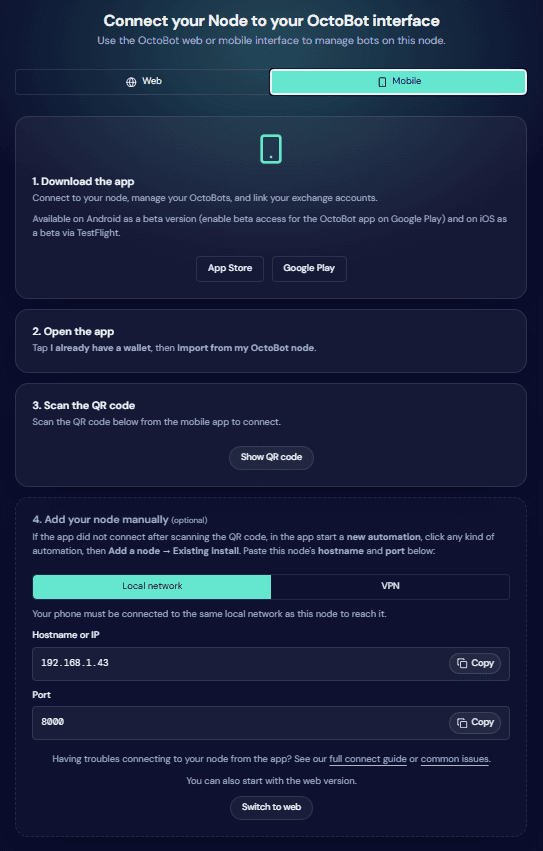
- Download the app: install OctoBot from the App Store (iPhone) or Google Play (Android).
- Open the app: I already have a wallet, then Import from my OctoBot node.
- Scan the QR code: on the node, click Show QR code and scan from the app. Only scan on a trusted device (the QR contains your seed phrase).
- Add your node manually (optional): if the QR code did not work, use new automation → any type → Add a node → Existing install in the app. Copy Hostname or IP and Port from the node Local network tab.
Common issues
- Phone or laptop not on the same Wi-Fi as the node (guest Wi-Fi, or router settings that stop devices on your home network from talking to each other).
- Wrong port: check the Port field on the node connect screen.
- Windows Firewall (or similar): allow OctoBot to accept incoming connections on Private networks. In Windows, set your Wi-Fi network to Private, not Public, so other computers and phones at home can reach the node.
- Antivirus on the computer that runs the node blocking incoming connections to the node port.
- Browser blocks the connection: try Google Chrome or Brave.
- QR scan did nothing: use manual connect (step 4) with Local network tab values.
- Lost connection to the node: The web or mobile app can list your node but show Unreachable when it cannot talk to the node program.
When connection has been lost, Queued actions (for example starting an automation, saving credentials or adding an account) stay waiting until the connection is restored. This means the web or mobile app currently cannot connect to the node, as a result, your Node didn’t yet perform the actions. As soon as the connection is restored, the actions will be performed by your OctoBot Node.
Private network
When to use
Choose this when you want to reach your node from anywhere (not only on home Wi-Fi). This setup requires a VPN so your phone, laptop, and node can talk to each other securely. We recommend Tailscale and document it step by step below (Learn more about Tailscale). You do not need to put your node on the public internet.
If you only use OctoBot at home on Wi-Fi, Local network is simpler.
Already linked on Local network? You can keep the same node and wallet. Install Tailscale on the node computer and on each device you use, sign in everywhere with the same Tailscale account, then when you add or edit the node in the web or app, use the VPN tab values instead of Local network. You do not need to reinstall OctoBot.
Other VPNs: A VPN other than Tailscale can work too, as long as your phone, laptop, and node can talk to each other on a private encrypted network (similar to home Wi-Fi, without putting your node on the public internet). The steps below use Tailscale. If you use another VPN, the VPN tab on the node connect screen might not show your node’s real IP address or DNS name on that network. Before you link the web or app, check the IP or DNS name your node actually uses on the VPN when you enter hostname and port.
How to configure the node
- Install Tailscale on the computer that runs the node. Sign in and make sure Tailscale is running.
- On that computer, open the node UI at
http://localhost:8000and go to Connect your Node to your OctoBot interface (or Settings → Connect). - Open the VPN tab (not Local network). Copy the Private Network IP or hostname and port. If the tab is empty, sign in to Tailscale on the node computer and refresh the page.
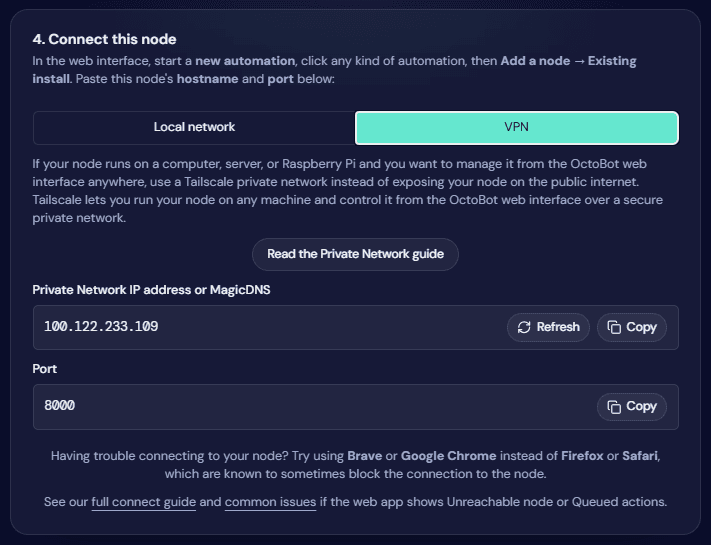
- Install Tailscale on every phone or computer you will use to connect, sign in with the same account, and keep Tailscale enabled on each device.
If the node runs on a Raspberry Pi, see the Raspberry Pi guide. Tailscale should also be installed and running on Raspberry Pi.
How to connect using the web interface
On the computer that runs the node
Use the node UI on http://localhost:8000 to read the steps and copy your private key. In new.mobile.octobot.cloud, follow the four Web steps from the node connect screen. When you add the node, use the hostname and port from the VPN tab (your node’s full Tailscale name or IP), not localhost or 127.0.0.1.
From another computer
Install Tailscale, sign in with the same account as the node, and confirm Tailscale is running. Open new.mobile.octobot.cloud, then:
- Sign in with your wallet: I already have a wallet, then I already have a private key.
- Copy your private key from this Node from the node UI (Settings → Connect → Web tab) and paste it into the web interface.
- Connect this node: new automation → any type → Add a node → Existing install. Use the full Private Network hostname or IP and port from the node VPN tab.
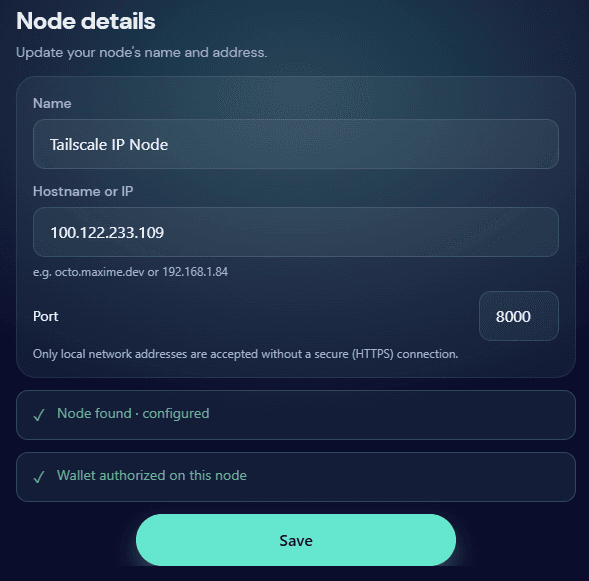
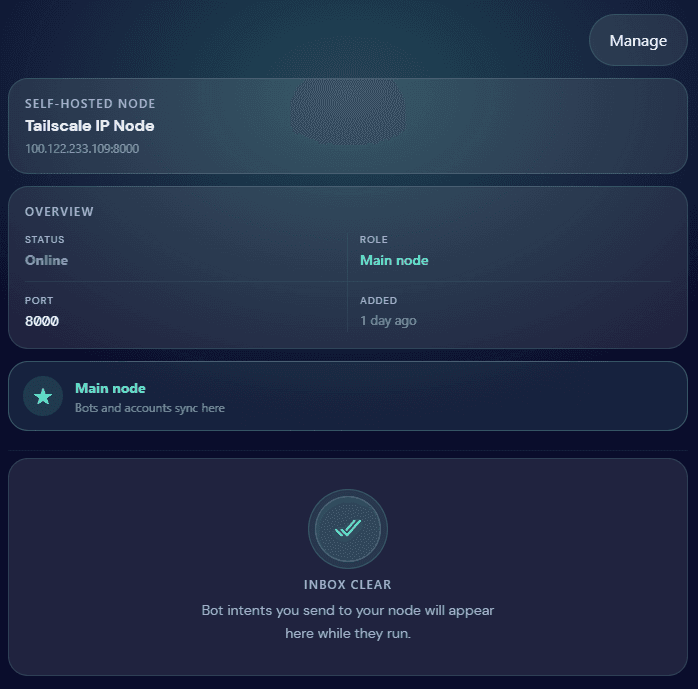
When linked, the node shows Online in the app (contrast with What a failed connection looks like).
Pro Tip: your OctoBot Node’s interface can also be used from another computer on the same Tailscale network by accessing it from the Tailscale full domain name of your node’s computer. This only works with the Tailscale’s MagicDNS feature and if your node’s computer is running the Tailscale serve command: tailscale serve --bg http://127.0.0.1:8000.
How to connect using the app
On the node’s computer, open Connect your Node to your OctoBot interface → Mobile tab.
- Install the OctoBot app from the App Store or Google Play on your phone. Also install Tailscale, sign in with the same account as the node, and keep Tailscale enabled.
- Follow steps 1 to 2 on the node Mobile tab (wallet import path).
- Prefer Scan the QR code on the node. Only scan on a trusted device.
- If QR did not work, add the node manually with the VPN tab hostname and port (full Tailscale name or IP).
Common issues
If the web or app shows Unreachable or a growing Queued list, see What a failed connection looks like in the Local network section (same screen; fix Tailscale, hostname, or firewall using the bullets below).
- Tailscale not installed on the node computer or on the phone or computer you connect from.
- Tailscale not running or not enabled on one of the devices.
- Not signed in to the same Tailscale account on all devices.
- VPN tab empty on the node: sign in to Tailscale on the node computer, restart Tailscale if needed, refresh the connect screen.
- Wrong hostname: use the full Tailscale name or IP shown on the node VPN tab, not a shortened name or guess.
- Windows Firewall: allow incoming connections for OctoBot and Tailscale; treat your Tailscale connection as a Private network where Windows asks.
- Browser blocks the connection: try Brave or Google Chrome.
- Wallet or key errors: re-copy the private key from step 3 on the node.
About Tailscale
Tailscale is a widely used software that creates a private network between your devices only: the computer that runs your OctoBot node, your phone, your laptop, and any other machine where you install it. Those devices can talk to each other securely, almost as if they were on the same home Wi-Fi, even when you use mobile data or a different Wi-Fi network.
For typical OctoBot use with a few devices, Tailscale’s free personal plan is enough. You do not need a paid subscription.
Tailscale is open source. The apps you install are open-source software, and the encrypted connections use WireGuard, a widely used open-source VPN technology.
You install Tailscale on each device and sign in with the same Tailscale account. Tailscale groups those devices into your own small network (often called a tailnet). Each device gets an address on that private network. On your OctoBot node, the connect screen VPN tab shows the hostname and port your phone or browser should use when you link the web or mobile app.
Traffic between your devices is encrypted. You do not need to open port forwarding on your home router or put your node on the public internet for Tailscale to work. Tailscale helps your devices find each other; when possible, data goes directly from one of your devices to another.
OctoBot uses Tailscale so you can connect new.mobile.octobot.cloud or the mobile app to your node from anywhere, without exposing your node to the whole internet.
Keep Tailscale running on each device you use with OctoBot, and use the VPN tab on your node when you link the web or app. If you still cannot connect, check Common issues above before changing your other VPN settings. You can use Tailscale on top of other VPNs you may already have. Tailscale is built to work alongside them and should not conflict with other VPNs.
Install Tailscale on the computer that runs the node and on every phone or computer you use. Keep Tailscale running and signed in on each device. When you add your node in the web or app, use the VPN tab on the node connect screen, not the Local network tab. For install and setup steps, see How to configure the node above.
Download Tailscale from tailscale.com/download.
Remote server
When to use
Choose this when OctoBot runs on a cloud server you can manage (for example a virtual server from a hosting company, or your own server). The server stays on all the time, but you handle firewalls, security certificates, and running costs.
For a first setup at home, Local network or Private network with Tailscale on a home computer is usually more accessible.
How to configure the node
- Log in to your cloud server the way your provider explains (remote desktop or secure shell).
- Make sure the OctoBot node is running and open the node UI on the server (
http://localhost:8000on that server, or the HTTPS address from your provider). - Open Connect your Node to your OctoBot interface on the server.
- Pick one way for your phone and other computers to reach the node:
- Tailscale on the server: same steps as Private network (install Tailscale on the server and on each device, use the VPN tab).
- Public HTTPS: common on marketplace images. See the DigitalOcean install guide. Use that address when you open the node UI and when you copy hostname and port for the web and app.
How to connect using the web interface
On the computer that runs the node
If you can open a browser on the cloud server itself, use Connect your Node to your OctoBot interface → Web tab and follow the four steps there (same flow as Local network on the computer that runs the node).
From another computer
Open new.mobile.octobot.cloud on your own computer. Follow the four Web steps from the node connect screen on the server. When you add the node, use:
| Source | Hostname | Port |
|---|---|---|
| Tailscale on the server | Full name from the VPN tab on the server | Port on the node connect screen |
| Public HTTPS setup | Hostname from your provider or server setup | leave empty unless https is on a custom port |
Use Brave or Google Chrome if the browser blocks the connection.
Pro Tip: When HTTPS is setup on the server, you can use the HTTPS url to connect to the node’s interface from any other device: it’s accessible from the internet.
How to connect using the app
On the server, open Connect your Node to your OctoBot interface → Mobile tab.
- Install the OctoBot app from the App Store or Google Play on your phone. If you use Tailscale on the server, also install Tailscale on the phone, sign in, and keep it enabled.
- Follow the node Mobile tab for wallet import and QR scan when you can open the connect screen on the server.
- If QR did not work, add the node manually with the VPN tab values (Tailscale) or the hostname from your cloud setup (not the home Local network tab from a different machine). If you use HTTPS, leave the port empty unless you use a custom port.
Common issues
If the node appears Unreachable or actions stay Queued, see What a failed connection looks like (wrong hostname, firewall, or node not running are common on cloud servers).
- Cloud firewall or security rules: open the ports your node uses (and port 443 if you use HTTPS for the node UI).
- Security certificate warnings on HTTPS setups: fix TLS on the server or follow your provider’s instructions.
- Tailscale path: Tailscale must be installed, enabled, and signed in on the server and on the phone; use the full Tailscale name or IP from the VPN tab; same Tailscale account on all devices.
- Wrong hostname: do not use your home Wi-Fi address for a cloud server; use the VPN tab or your provider’s hostname.
- Antivirus or firewall on the server blocking incoming connections to the node port.
- Wrong port: if you use HTTPS, leave the port empty unless you use a custom port.
Managing your node and re-linking
Pair the web or app again
Go to Settings → Connect on the node (same Web and Mobile steps as during Initial node setup) when you changed wallets, use a new phone or browser, reinstalled the node without copying user, or the web or app no longer reaches the node. If the app shows Unreachable or a growing Queued list, see What a failed connection looks like before re-pairing.
No trading data is lost on the node. Strategies, exchange links, and history live on the node, inside user. Re-pairing only links the web or app to that node again. It does not wipe your automations.
You can disconnect or reconnect the web interface and mobile app whenever you need. That does not stop strategies that are already running on the node.
Open the node UI, go to Settings → Connect, and follow the Web or Mobile tab for your setup: Local network, Private network, or Remote server.
Stopping the node
You can stop and restart the OctoBot node at any time (shut down the program, restart the computer, maintenance, or updates after you copied user). That is normal.
While the node is not running, your strategies pause. OctoBot does not place new trades until the node is running again.
Disconnecting the web or mobile app is not the same as stopping the node. Strategies keep running on the node until the node itself is stopped.
Update your OctoBot node
Installing a new version or replacing the OctoBot program on the same computer is normal. You usually do not need to pair the web or mobile app again if you keep your existing data.
OctoBot stores your wallet, exchanges, and automations in a folder named user next to your install. Before you start the new OctoBot install for the first time, copy the entire user folder from your old install into the new install location. If the new install already created an empty user folder, replace it with your copy. Do not only point the new program at the old folder path on disk; the new install should contain your copied user folder. See the installation guide for where user lives on your computer or Raspberry Pi.
Only start OctoBot after the copy is finished, so nothing is recreated from scratch. After an update, open the node UI and check that your automations look as before. The web and mobile app should still reach the same node if your hostname, port, and Tailscale setup did not change.
Security
- Your private key and seed phrase controls your OctoBot wallet. Only paste it into the official web interface or app. Never share it in chat or email.
- The mobile QR code contains your seed phrase. Only scan on a trusted device, as the node warns before showing the code.
- When you expose a node on the public internet, use firewalls and use HTTPS on the server. Tailscale keeps control traffic off the public internet for private network setups and should be preferred over HTTPS unless you are sure you understand the risks of exposing your node to the internet.