Get started with OctoBot
OctoBot runs in node mode by default. Your node is the program on your computer or VPS that connects to exchanges and runs your strategies. You configure and monitor automations from the new OctoBot interface, the iOS app, or the Android app.
OctoBot 3 and the new OctoBot interface are still in beta. You may hit bugs or rough edges while we improve the product. If you find an issue, email contact@octobot.cloud.
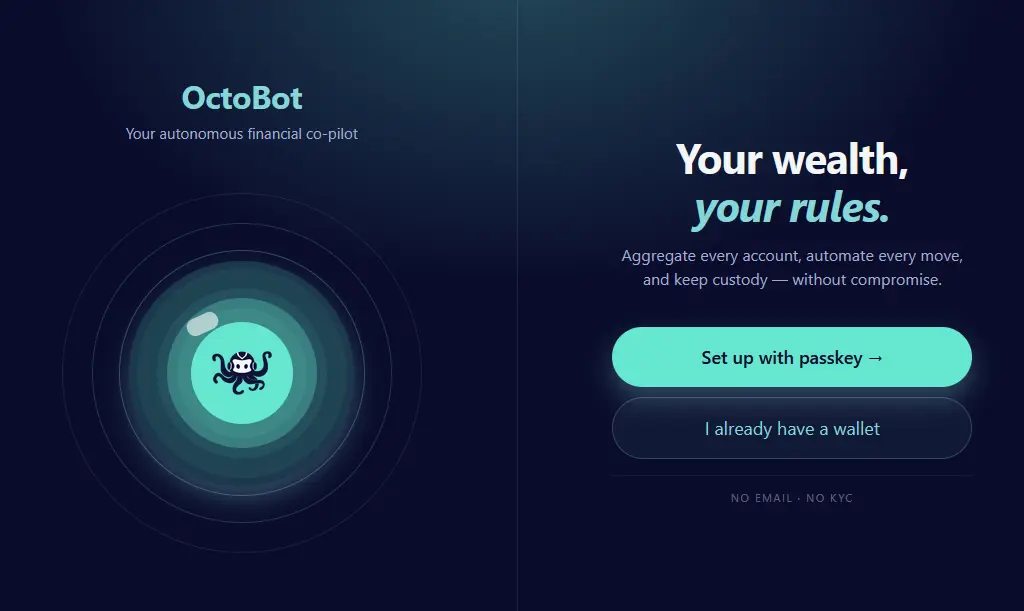
Download and install OctoBot
Install OctoBot on your computer or server using an installation guide (executable, Docker, or Python) or get the latest release from the GitHub.
Since version 3, OctoBot runs in node mode by default. Complete the initial node setup and you will be able to run as many investment strategies and manual OctoBot instances as you want, on most crypto exchanges, while following everything from the web or mobile app.
Connect the OctoBot interface
You can use your node from:
- Web browser: Open new.mobile.octobot.cloud on desktop or mobile (recommended).
- iOS app: Install OctoBot from the App Store (TestFlight version).
- Android app: Install OctoBot from Google Play (Beta version).
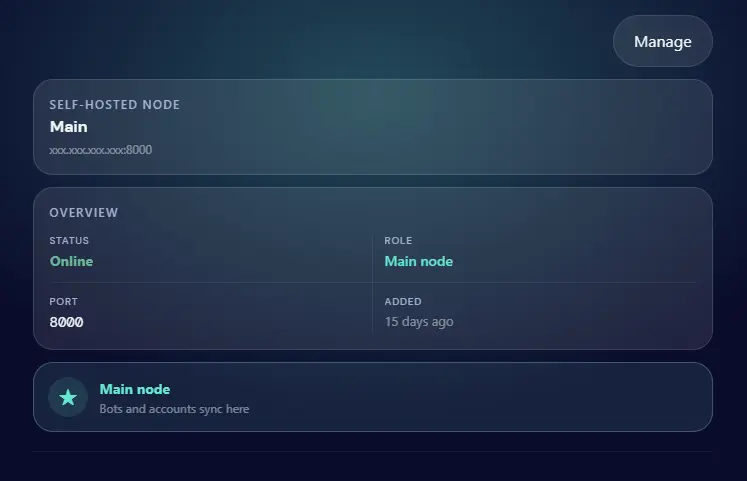
After installation: Starting your OctoBot
- Open the node setupOpen
http://localhost:8000on the PC where OctoBot is running. The node setup screen opens in your browser. - Set up your node walletOn the node, create or import your node wallet to secure your node and its data. This wallet is not a cryptocurrency wallet, do not use a crypto wallet private key and never share your private key with anyone.
- Connect your Node to your OctoBot interfaceFrom the Connect your Node to your OctoBot interface step (or Settings → Connect → Web tab), open new.mobile.octobot.cloud. I already have a wallet → I already have a private key. Paste Copy your private key from this node. Then new automation → any type → Add a node → Existing install. Hostname: the hostname or IP the node shows. Port: 8000 (or what the node shows). Click Save when the checks turn green. Still Unreachable? Check our connection troubleshoot.
- Launch your first OctoBotOn new.mobile.octobot.cloud, leave demo mode on (default for risk-free simulated trading). Add an exchange account with 1000 USDC (or the crypto of your choice). Start a new automation (for example a Grid on BTC/USDC, if you added USDC to the demo account) and follow your automation from your OctoBot interface.
- Your node is now executing your strategyWhen you start an automation, the node runs it on its computer. You do not need to keep the browser tab or app open. Just leave the OctoBot program running so that it keeps trading. You can run as many automations as you want, on most crypto exchanges, with demo and real accounts. When needed, feel free to stop and restart your node, it will resume trading when you turn it back on.
Use new.mobile.octobot.cloud or the iOS or Android app on a regular basis to follow your investments and turn automations on and off. Go back to the node interface at http://localhost:8000 only for configuration, administration, or to connect to a new phone or computer.
Connection problems? Read the Node Connect Guide. If your node shows Unreachable, see connection common issues.
Run automations
Once connected, the home dashboard shows your accounts and running automations.
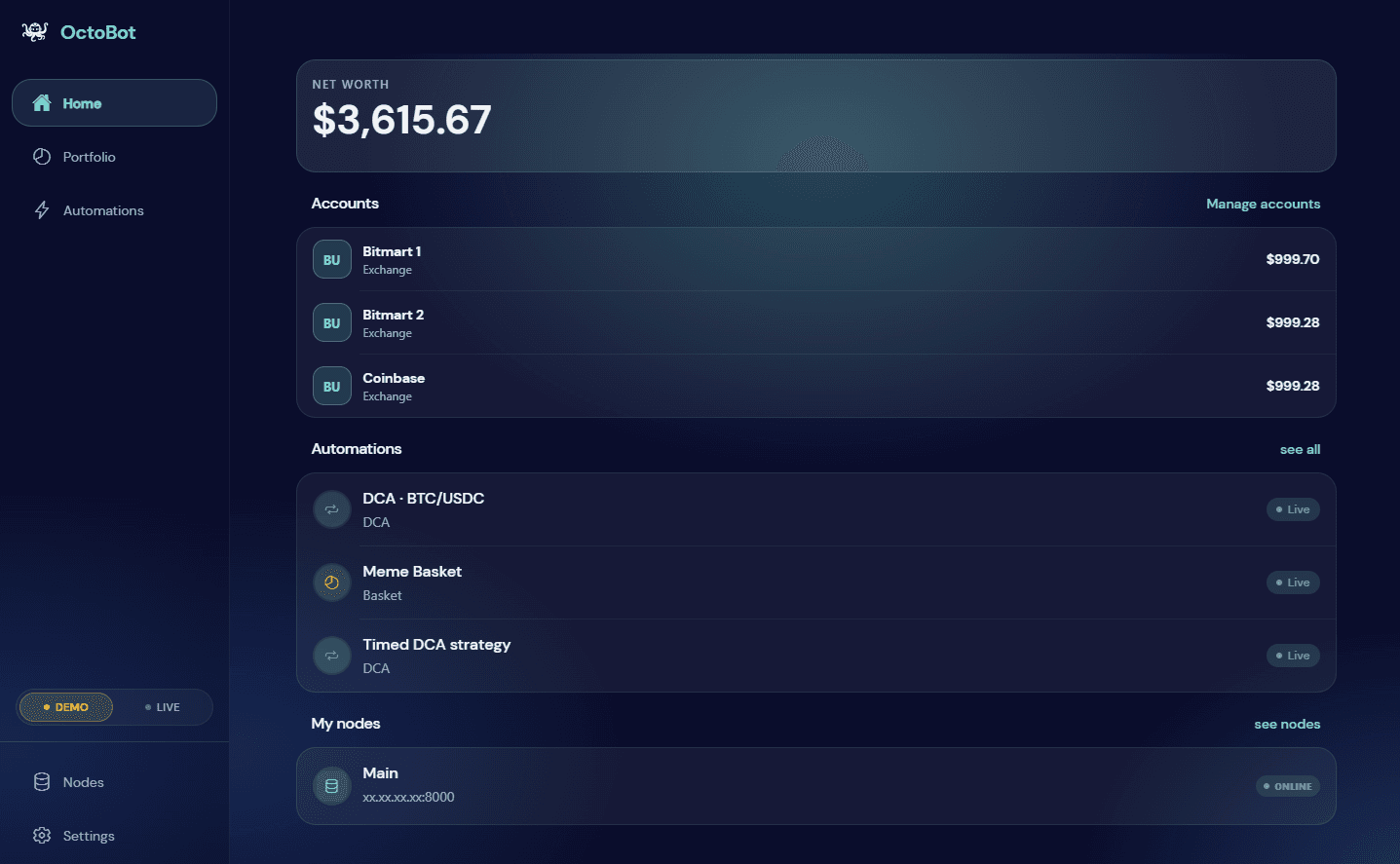
An automation is a strategy running on your node. It can do anything: DCA, baskets, grids, TradingView automation, and more. Automations support demo and live trading. You can start as many as you want from the new OctoBot interface.
Manual OctoBots
For backtesting, Telegram, TradingView, and other advanced workflows, start a manual OctoBot instance from your node interface.
- Open your OctoBot node interface at
http://localhost:8000. - Click New OctoBot.
- Follow the prompts to start a manual OctoBot instance.
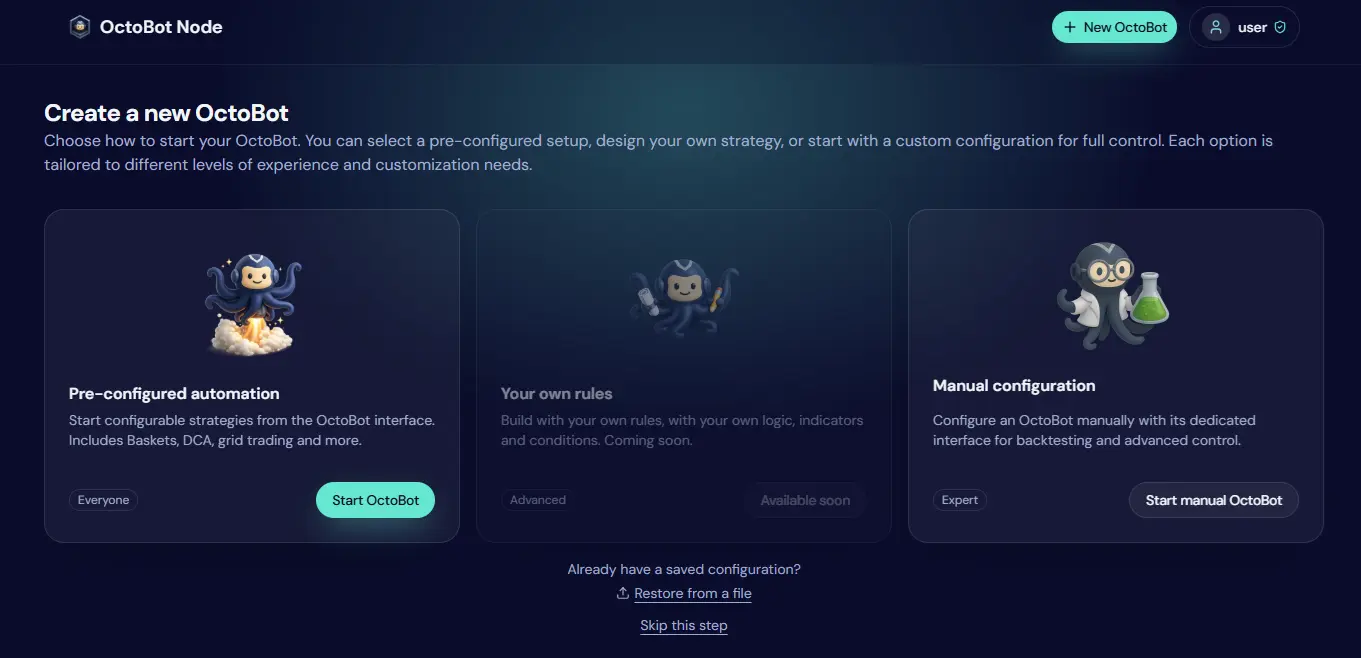
See the open-source guides for configuration, trading modes, and interfaces.
Other resources
- Connection troubleshooting: If the web or mobile app shows Unreachable, actions stay Queued, or your firewall or antivirus blocks the node, see Common issues in the Node Connect Guide.
- Tailscale: To manage your node from outside your home Wi-Fi without exposing it on the public internet, use a private Tailscale network. Read About Tailscale in the Node Connect Guide.
- Full connect walkthrough: Connect your node to the OctoBot interface.